
Pixel Camera
Screenshots
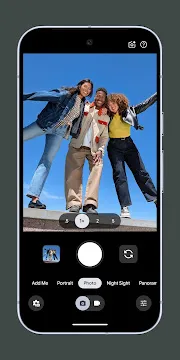
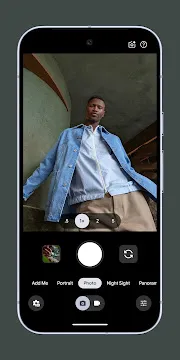
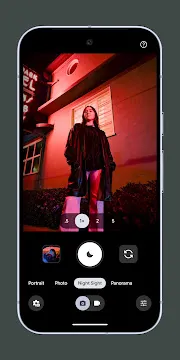
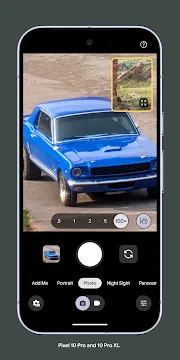
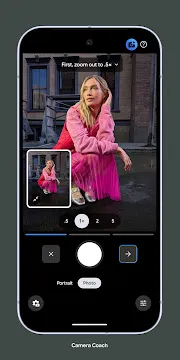
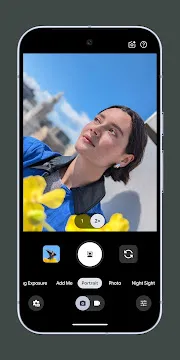
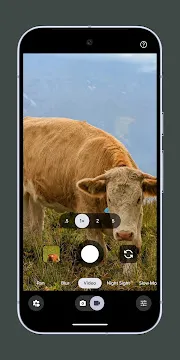
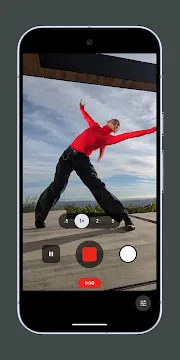
The Google Pixel Camera completely changed mobile photography. It runs on Android phones. Specifically, Google designed it for their Pixel devices. This camera app does more than simply capture images. Instead, it uses computational photography technology. This means powerful software improves every single picture you take. Therefore, your Android photos look professional and stunning.
In fact, the Pixel Camera makes great photos easy. You do not need complex settings or expensive gear. The app uses smart algorithms for best results. It combines multiple shots instantly. This process creates images with better color, detail, and light. Consequently, even beginners take amazing pictures.
Unlock Amazing Photos: Key Features of the Pixel Camera for Android
You want stunning photos without extra effort. The Google Pixel Camera delivers this power. It uses advanced software and AI to capture incredible images. You get professional-level results easily on your Android phone.
HDR+ Technology: Smarter Photos
HDR+ is the core of the Pixel camera. This feature is always working. It takes a quick burst of many underexposed photos. Then, the phone instantly combines them.
- It balances bright highlights and dark shadows.
- It protects bright skies from looking white.
- The result is a single, perfectly exposed picture.
- Therefore, your images show great detail in all lighting.
Night Sight Mode: See in the Dark
Forget using the flash. Night Sight truly transforms low-light photography. It uses advanced computational photography.
- You can capture clear, bright photos in very dark environments.
- The phone collects much more light than a standard shot.
- Furthermore, it reduces image noise dramatically.
- You get sharp, detailed night scenes effortlessly.
Portrait Mode: Focus on Your Subject
Portrait Mode makes your subject pop. It creates a beautiful depth-of-field effect. This is also known as “bokeh.”
- The software intelligently blurs the background.
- Your subject stays crisp and in sharp focus.
- This mode works great on people and objects.
- Essentially, you get studio-quality portraits instantly.
Super Res Zoom: Get Closer
Need to capture a faraway detail? Super Res Zoom helps you avoid blurry, grainy zoomed shots.
- It uses smart algorithms to enhance the image.
- The phone combines multiple frames when you zoom.
- Consequently, it boosts clarity and sharpness.
- You capture distant subjects with much better detail.
Astrophotography Mode: Shoot the Stars
This is a specialized feature of Night Sight. It lets you capture the night sky like never before. You need a steady surface, like a tripod.
- Point your Pixel at the stars.
- The camera automatically enters this unique mode.
- It uses long exposures to record starlight.
- You can capture stunning photos of stars and even the Milky Way.
Video Features: Smooth and Cinematic
The Pixel camera doesn’t just excel at photos; it delivers strong video. You record smooth, high-quality clips.
- The camera offers excellent video stabilization.
- This removes most of the shaky hand movements.
- Some models offer features like Cinematic Blur for a professional look.
- Ultimately, you shoot fluid, sharp videos easily.
User-Friendly Interface: Simple Control
Pixel’s camera app keeps things simple. You access powerful features without complex menus. The interface is clean and easy to navigate.
- You quickly switch between different modes.
- Controls are intuitive for everyone to use.
- The phone uses Google AI to choose the best settings for you.
- In conclusion, you focus on the moment, not the settings.
Get the Google Camera: Install Pixel Camera APK on Android
Do you want better photos? The Google Pixel Camera, or GCam, is famous. It uses advanced software for great images. You can install the Pixel Camera APK on most Android phones. This guide shows you how. It is a simple process.
Step 1: Allow Unknown Sources
Your Android phone blocks installations from outside the Google Play Store. This is a security feature. You must change a setting.
- Go to your phone’s Settings.
- Find the Security or Privacy section.
- Look for the option: “Install unknown apps” or “Unknown sources.”
- Enable this setting for the browser you will use. (For example, Chrome or Firefox).
Note: You can turn this setting off later. This keeps your phone secure after the installation.
Step 2: Download Pixel Camera APK
- Open your favorite browser.
- Visit Filetomob.com.
- Search for “Pixel Camera APK Download” online.
- Go to Pixel Camera Page.
- Download the APK file to your phone.
Step 3: Install the Pixel Camera
Now, install the downloaded file.
- Open your File Manager app.
- Go to the “Downloads” folder.
- Tap on the Pixel Camera APK file you downloaded.
- A prompt will appear. It asks you to confirm the installation.
- Tap “Install.” The app will install onto your phone. This usually takes just a moment.
Step 4: Start Taking Pictures!
The installation is complete.
- Find the new Camera app icon on your home screen or app drawer.
- Tap the icon to open the GCam.
- The app might ask for permissions. Grant all necessary permissions (Camera, Storage, Microphone).
- Try taking a picture. Test the different modes like Night Sight or Portrait.
Enjoy your new camera! You now have access to Google’s fantastic photography features.
Pixel Camera: The AI-Powered Editing Suite
The Pixel Camera is truly special. It uses Artificial Intelligence (AI) to make your photos perfect. This AI-powered editing suite is pure magic. It helps you save bad photos. It also makes good photos look amazing.
Magic Eraser: Instant Cleanup
The Magic Eraser is a powerful tool. It lets users clean up photos easily. Distracting objects often ruin a perfect shot. People in the background can be annoying. The Magic Eraser removes these problems.
- First, you select the item you want gone.
- Then, Generative AI works instantly.
- It seamlessly fills the empty space.
- The result is a clean, beautiful photo.
The Benefit: You easily save a great photo. You no longer worry about background clutter.
Best Take: Perfect Group Photos
Getting a great group photo is difficult. Someone always blinks or looks away. Best Take solves this common problem. It takes multiple group photos for you.
- The system analyzes all the images.
- It lets you choose the best expression.
- You swap in the perfect face for each person.
- Finally, the AI creates one perfect composite photo.
The Benefit: Stop taking endless retakes of group shots. You get the perfect picture every time.
Photo Unblur: Sharpening Your Memories
A slightly blurry photo is frustrating. Movement or unsteady hands cause this issue. Photo Unblur uses advanced AI models. It brings sharpness back to soft images.
- The AI detects the blur.
- It actively sharpens the details.
- The process saves imperfect photos.
The Benefit: You save old or unusable photos. Cherished memories become clear again.
Creative Features: Action Pan & Long Exposure
The Pixel Camera also unlocks creativity. It includes specialized software tools. Action Pan and Long Exposure add dynamic motion effects.
- Action Pan keeps your subject sharp. Meanwhile, it blurs the background. This effect emphasizes speed. Think of a sharp car with blurred wheels.
- Long Exposure creates smooth, silky motion blur. It is perfect for waterfalls or light trails.
The Benefit: You create unique, professional-looking photos. You elevate your creative photography skills easily.
In Summary
The Pixel Camera’s AI editing suite is a game-changer. It instantly fixes flaws with tools like the Magic Eraser. Furthermore, it ensures perfect groups with Best Take. Additionally, it sharpens old photos using Photo Unblur. Therefore, this technology makes advanced editing simple for everyone.
Pixel Camera: Basic Controls
You hold powerful tools. Your Android Pixel camera offers simple, essential controls. Learn these basics now. You will immediately take better photos.
The Shutter Button
The Shutter Button starts everything. Tap it to capture a still photograph. It lives right at the bottom center of your screen. This single press takes a great picture.
- Find the circular button.
- Press it firmly but quickly.
- You capture your moment instantly.
Focus with a Tap
Your camera needs a focus point. Tap the screen where you see your subject. The camera focuses there fast. It also adjusts the light for that specific spot.
See a beautiful flower? Tap the flower.
Notice a friend’s face? Tap their face.
The camera confirms focus with a small circle.
Next, you can fine-tune the exposure.
Adjusting Exposure
Exposure controls brightness. Sometimes your photo looks too dark or too bright. Therefore, you must adjust the exposure slider.
- First, tap to focus on your subject.
- A small sun icon appears next to the focus circle.
- Drag this icon up or down.
- Drag up: Make the photo brighter.
- Drag down: Make the photo darker.
Use the Zoom
You do not always stand close enough. You need to bring your subject closer. Pinch the screen with two fingers.
- Pinch outward to zoom in.
- Pinch inward to zoom out.
Alternatively, tap the zoom level buttons. These buttons often show 1x, 2x, or 5x. They offer fast, common zoom steps.
Switching Modes
Different scenes need different modes. Swipe your finger across the mode carousel. This carousel is at the bottom of your screen. You will see names like “Portrait” and “Night Sight.”
- Select Portrait for sharp faces and blurred backgrounds.
- Choose Video to record action.
- Pick Night Sight when it is dark.
You control the camera. Consequently, you control your final image. Use these basic controls and start taking amazing photos today!
Pixel Camera: Tips for Beginners
The Pixel camera is powerful. It uses Google’s amazing software. You can take pro-quality photos easily. First, you should learn the basics. Then, you can master special modes. We will show you simple ways to take better pictures today!
Quick Launch Your Camera
Never miss a great moment. You need to open your camera fast.
- Double-tap the Power Button. This launches the camera quickly.
- It works even when your phone is locked.
- Alternatively, swipe up from the bottom corner on the Lock screen.
- Therefore, your camera is ready in a second.
Master Simple Focus and Exposure
Focus is key to a sharp photo. You control the light, too.
- Tap to Focus: Point your camera. Then, tap on your subject. This focuses the lens precisely.
- A circle appears on the screen. Furthermore, this circle shows the focus point.
- Adjust Exposure: After tapping, small slider controls appear next to the circle.
- Drag the Sun icon up or down. This brightens or darkens the image.
- Remember to tap the lock icon to lock both the focus and exposure. This prevents changes as you move the camera.
Essential Photography Modes
The Pixel offers unique shooting modes. Use them to improve your results.
Night Sight
Night Sight is famous. It makes dark photos look bright.
- Swipe over to the Night Sight mode.
- Next, hold your phone very still. The camera takes a few seconds.
- It captures many frames. Finally, it combines them for a clear, bright picture.
- Tip: Set your phone on a stable surface for the best results.
Portrait Mode
Portrait Mode adds a professional blur. This is called bokeh.
- Choose the Portrait mode.
- Line up your subject. Keep them close to the camera.
- The background blurs automatically. In fact, it keeps your subject sharp.
- You can edit the blur level later in Google Photos.
Motion Modes
These modes add creative movement blur. They are fun to use!
- Action Pan: Select this mode. Pan your camera with a moving subject. You get a sharp subject and a blurred background.
- Long Exposure: Keep the phone still. Moving objects, like cars or water, blur. Thus, you create a dreamy effect.
Frame Your Shot with Gridlines
Use a simple tool to take straighter, more balanced photos.
- Go to Settings in the camera app.
- Find the Grid type option.
- Turn on the 3×3 grid. This overlays lines on your screen.
- The lines help you follow the Rule of Thirds. Place important elements along the lines or at their intersections.
Use Google Photos Magic
The photo editing power continues after the shot. Pixel offers AI tools.
- Magic Eraser: Use this tool in Google Photos. For example, remove an unwanted person or object. Just circle what you want to disappear.
- Photo Unblur: Did you take a blurry photo? This tool can sharpen the image. It works on older photos, too.
Best Settings for Your Pixel Camera
The Pixel camera is already amazing. However, a few quick changes make your photos truly stand out. You need to adjust the settings. This guides you to capture the best quality images on your Android phone. We use simple steps to improve your shots right now.
Maximize Your Photo Detail
You want to capture all the possible data. The Pixel’s sensor collects a lot of information. You should tell the phone to save it all.
- Change the Aspect Ratio. Open the Camera app. Tap the Settings gear icon. Choose Ratio. Select Full Image (4:3). This uses the entire camera sensor. You stop cropping data before you even take the picture.
- Enable RAW + JPEG Control. A JPEG file is compressed. It loses detail. A RAW file keeps all the original image data. Go to Settings > More settings > Advanced. Toggle on RAW/JPEG control. This saves two files. Therefore, you get an instantly shareable photo and a high-quality file for editing.
Master the Composition
Better composition makes your photos more interesting. You can use simple guides built into the app.
- Turn on Grid Lines. Go to Settings. Find Grid type. Select the 3×3 option. These lines help you use the “Rule of Thirds.” Place your main subject where the lines intersect. This creates a more balanced and dynamic image.
- Activate Framing Hints. Straight horizons look professional. Go to Settings > More settings > Framing hints. A yellow and a white line appear on your screen. You align these two lines until they overlap perfectly. This ensures a level shot every single time.
Use Advanced Color and AI
The Pixel uses powerful AI to enhance images. You must ensure you activate the best features.
- Switch on Rich Color (P3). This setting captures a wider range of colors. Your reds and greens become more vibrant. Go to Settings > More Settings. Look for Rich color in photos. Turn it on. This makes your images pop on compatible screens.
- Use Manual Adjustments. Do not let the camera decide everything. Tap on your subject in the viewfinder. Sliders appear for Brightness (Exposure) and White Balance. Move the sliders to brighten shadows or adjust the color temperature. This gives you immediate, creative control over the final shot.
- Explore Macro Focus. Get close to small subjects. Move your phone very near the subject. A small flower icon appears. This means Macro Focus is active. Now you capture stunning, razor-sharp close-up details.
The Final Step: Shooting & Editing
You now have the best settings. Take your shot! The camera does its work.
Remember these shooting tips:
- Tap to Focus: Always tap the screen on your main subject. This sets the focus and exposure correctly.
- Use Portrait Mode: Portrait mode creates a beautiful blurred background. It makes your subject stand out.
- Check Top Shot: The Pixel captures a burst of photos. Top Shot automatically selects the sharpest image. Review the “Motion photo” to manually pick the absolute best frame.
The Pixel’s camera hardware is great. However, your smart settings make the real difference. Adjust these simple options today. You will dramatically improve your photo quality.
Pixel Camera: Essential Modes and Settings
The Google Pixel camera is powerful. You can take amazing photos with its smart features. Learn to use its shooting modes and settings. You will capture perfect moments every time.
Essential Shooting Modes
Pixel offers different modes for various scenes. Simply swipe left or right across the bottom of the viewfinder. Choose the right tool for your shot.
- Photo Mode: This is the default setting. Use it for most everyday pictures. The camera’s AI optimizes everything automatically.
- Portrait Mode: Blur the background beautifully. This effect is called ‘bokeh’. It makes your subject stand out sharply. Use it for people, pets, or food photos.
- Night Sight: Take bright, clear photos in low light. The phone stacks multiple exposures. This reduces noise and boosts detail. Pro Tip: Keep the camera very still.
- Video Mode: Capture smooth, high-quality video clips. You can choose different resolutions here. Look for video stabilization options too.
Creative Motion Modes
Want a more dramatic look? Pixel provides modes to capture movement creatively.
- Action Pan: Select this for fast-moving subjects. The subject stays sharp. The background shows a dynamic motion blur. You actively follow your subject while shooting.
- Long Exposure: Use this mode for light trails or moving water. The camera holds the shutter open longer. It adds an artistic blur to moving elements. Keep the phone steady for the best result.
Accessing Advanced Settings
Find more controls in the camera’s settings menu. Tap the gear icon or swipe down from the top. Then, you unlock deeper customization.
Key Settings to Adjust
You control the final look of your photo. Change these settings before you shoot.
Exposure and White Balance:
- Find the adjustment sliders on your screen. Tap the subject to bring them up.
- Adjust Exposure to control brightness. Slide it up to brighten dark areas.
- Change the White Balance for color temperature. Make your image warmer or cooler.
Grid Type:
- Turn on the 3×3 grid. This uses the ‘Rule of Thirds.’
- The grid helps you compose balanced photos. Align important elements with the lines.
Aspect Ratio:
- Choose between 4:3 (full sensor) and 16:9 (wide crop).
- Select the ratio that best fits your desired final look.
RAW/JPEG Control (Pro Models):
- Enable RAW + JPEG capture in advanced settings.
- RAW files give you maximum editing flexibility later. JPEG files are ready to share immediately.
Pro Camera Controls (Pixel Pro)
Certain Pixel phones offer ‘Pro’ controls. These give you manual control like a traditional camera.
- Manual Focus: You precisely set the focus point. Use this for sharp macro shots or selective focus.
- Shutter Speed: Adjust how long the sensor captures light. Use a faster speed to freeze motion. Use a slower speed for creative blur effects.
- ISO: Control the sensor’s sensitivity to light. Lower ISO means less noise. Higher ISO helps in very dark conditions.
Use these powerful tools. Therefore, you elevate your mobile photography. Explore each setting today! Which mode will you try first?
Pixel Camera vs. Default Camera Apps
Many users love taking photos with their smartphones. Most phones come with a default camera app. Google Pixel phones, however, use the unique Pixel Camera app. We will explore how these two options compare.
Image Quality Comparison
The biggest difference lies in image processing. The Pixel Camera uses advanced software. Google calls this computational photography. This technology helps the Pixel phone capture excellent photos.
Pixel Camera: It often takes multiple shots very quickly. It then merges these frames into one final image. This process reduces noise and maximizes detail. The resulting pictures often have:
- Better dynamic range (detail in both bright and dark areas).
- Accurate, natural-looking colors.
- Consistent quality, even in tricky lighting.
Default Camera Apps: These apps rely more on the phone’s hardware. They often apply simpler processing. The results can be less consistent. You might see over-sharpening or blown-out highlights.
The Pixel Camera consistently produces high-quality JPEGs. Consequently, users often prefer the look of Pixel photos.
Differences in Features and Performance
The Pixel Camera excels due to its unique features. These features enhance both performance and ease of use.
Key Pixel Camera Features:
- Night Sight: This mode takes exceptionally bright and clear low-light photos. It works by capturing many frames and stitching them together.
- HDR+: This feature creates stunning High Dynamic Range photos automatically. It delivers balanced exposure quickly.
- Portrait Mode: It creates a beautiful depth-of-field effect, blurring the background. It achieves this with software, not just a second lens.
- Super Res Zoom: This helps improve the detail of digitally zoomed-in photos. Google’s software minimizes the quality loss.
Therefore, the Pixel Camera offers powerful computational tools. Conversely, many standard camera apps may offer more manual controls. However, most users want a simple “point and shoot” experience. The Pixel Camera provides professional-level results with minimal effort.
Why Users Prefer Pixel Camera
Users strongly favor the Pixel Camera for several reasons. It simplifies the photography experience.
- Reliability: The app consistently takes a great picture the first time. Users trust it to perform well in any situation.
- Ease of Use: The interface stays simple and uncluttered. You do not need to adjust many settings. The AI handles the complex steps.
- Exclusive AI Tools: Features like Magic Eraser (for removing unwanted objects) add significant value. They make advanced editing accessible right on the phone.
- Focus on Software: Google focuses on perfecting the software. This software extracts the best possible image from the camera hardware.
Ultimately, the Pixel Camera app’s superior software processing drives its popularity. It empowers every user to take fantastic photos effortlessly.
Frequently asked questions about Pixel Camera For Android
What Makes the Pixel Camera Special?
Google uses computational photography. This is the key difference. The camera captures many images quickly. Then, software instantly blends them together.
- This process creates exceptional detail.
- It also improves color accuracy.
- The final image is better than a single shot.
Therefore, Pixel photos look consistently good.
What is Night Sight?
Night Sight is a famous feature. It lets you take bright, clear photos in very low light. It even works well in near-darkness.
- The camera holds the shutter open for several seconds.
- It takes multiple long exposures.
- Next, the smart software stabilizes and brightens the image.
Ultimately, Night Sight makes dark scenes visible. You will not need a flash. Furthermore, it allows for Astrophotography on some models.
Can I remove things from my photos?
Yes! Use the Magic Eraser tool. You find this in the Google Photos app. First, select the object or person you want to remove. Then, the AI fills the space seamlessly. It makes photobombers disappear.
How do I fix a blurry picture?
Try Photo Unblur. This feature lives inside Google Photos. It uses machine learning to sharpen faces and details. You can rescue old or shaky photos easily.
What is Super Res Zoom?
Super Res Zoom improves digital zoom. The Pixel Camera captures more data with tiny hand movements. Next, AI uses this data to enhance the zoomed image. You get sharper details from far away.
How do I take a straight photo?
The Pixel Camera offers leveler and grid lines. Go to your camera settings. Then, turn on the grid display. White and yellow lines appear on your screen. Align the two lines to level your shot perfectly.
What should I do if my camera is blurry?
First, clean your lens. Use a soft, clean cloth. Smudges and dust often cause blurry images. Then, try clearing the Camera app’s cache. Finally, if the issue persists, restart your phone.
- Wipe the lens gently.
- Clear the Camera app cache.
- Restart your Pixel phone.
Can I shoot in RAW format?
Absolutely. You can enable RAW/JPEG control in the advanced settings. Shooting in RAW captures more data. This gives you maximum control for professional editing later.
How do I launch the camera fast?
You can open the camera instantly. Just press the power button twice quickly. This shortcut works even when your phone is locked. It helps you capture quick moments without delay.
What Should I Do If the Camera App Crashes?
Sometimes, the camera app stops working. You can try a few easy fixes.
- Restart the App: Close the app completely. Then, open it again.
- Clear the Cache: Go to your phone’s Settings. Find the Camera App info. Select “Clear Cache.” This removes temporary files.
- Update the App: Check the Google Play Store. Ensure you run the latest version of the Pixel Camera app.
Next, restart your phone if these steps fail. This often resolves minor software conflicts.